.jpg.759ad685d0c70259ac184611db82158f.jpg)


GIGGS
-
Posts
2,944 -
Joined
-
Last visited
Everything posted by GIGGS
-
welcome to the clan m8, make sure to get 10 postcount and post a proper introduction
-
LOOL get fucked
-
ac walsy wisn
-
jeez lmfao nice
-
 1250
1250 -
The Future of my acc is in your hands
GIGGS replied to iron soll's topic in Wilderness & General Discussion
up to you, personally I hate playing on ironmen -
np m8, re-intro asap
-
yess lads, hate that cunt
-
will be sick for next tourny/season
-
you go first
-
nice m8, looks like you've made bank
-
Welcome m8, get 10 postcount and post a proper introduction
-
You ever cook meth on Old school RS?
GIGGS replied to slimjimm000's topic in Wilderness & General Discussion
looks like the biggest pile of garbage I've ever seen -
Greenshot Printscreen Tutorial (Instantly save pics)
GIGGS replied to GIGGS's topic in Wilderness & General Discussion
saves everything instantly to a folder so yes You do realize people play on different clients, lol? -
nice vid m8, and I agree with speedy that intro is sick if you made it yourself
-

-
Greenshot Printscreen Tutorial (Instantly save pics)
GIGGS replied to GIGGS's topic in Wilderness & General Discussion
yeah this is pretty much the same thing -
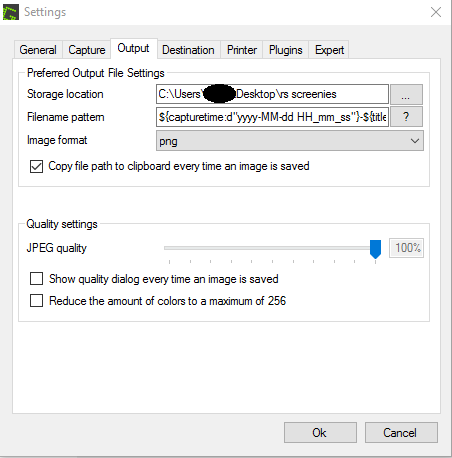
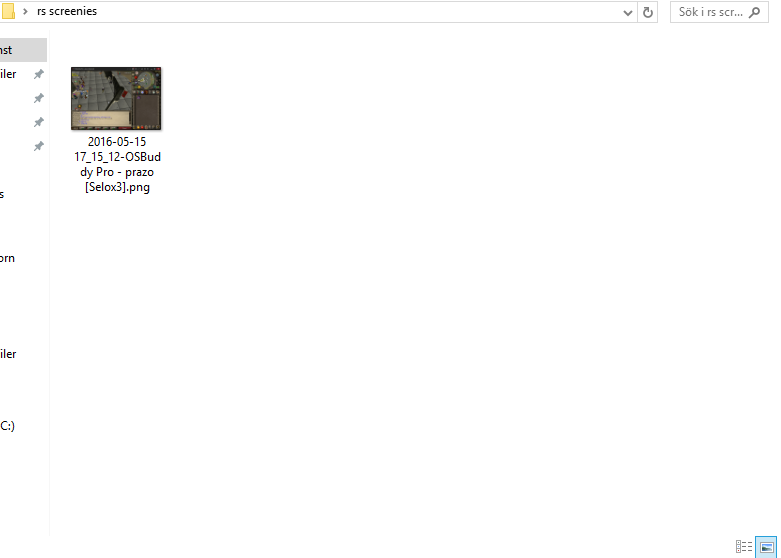
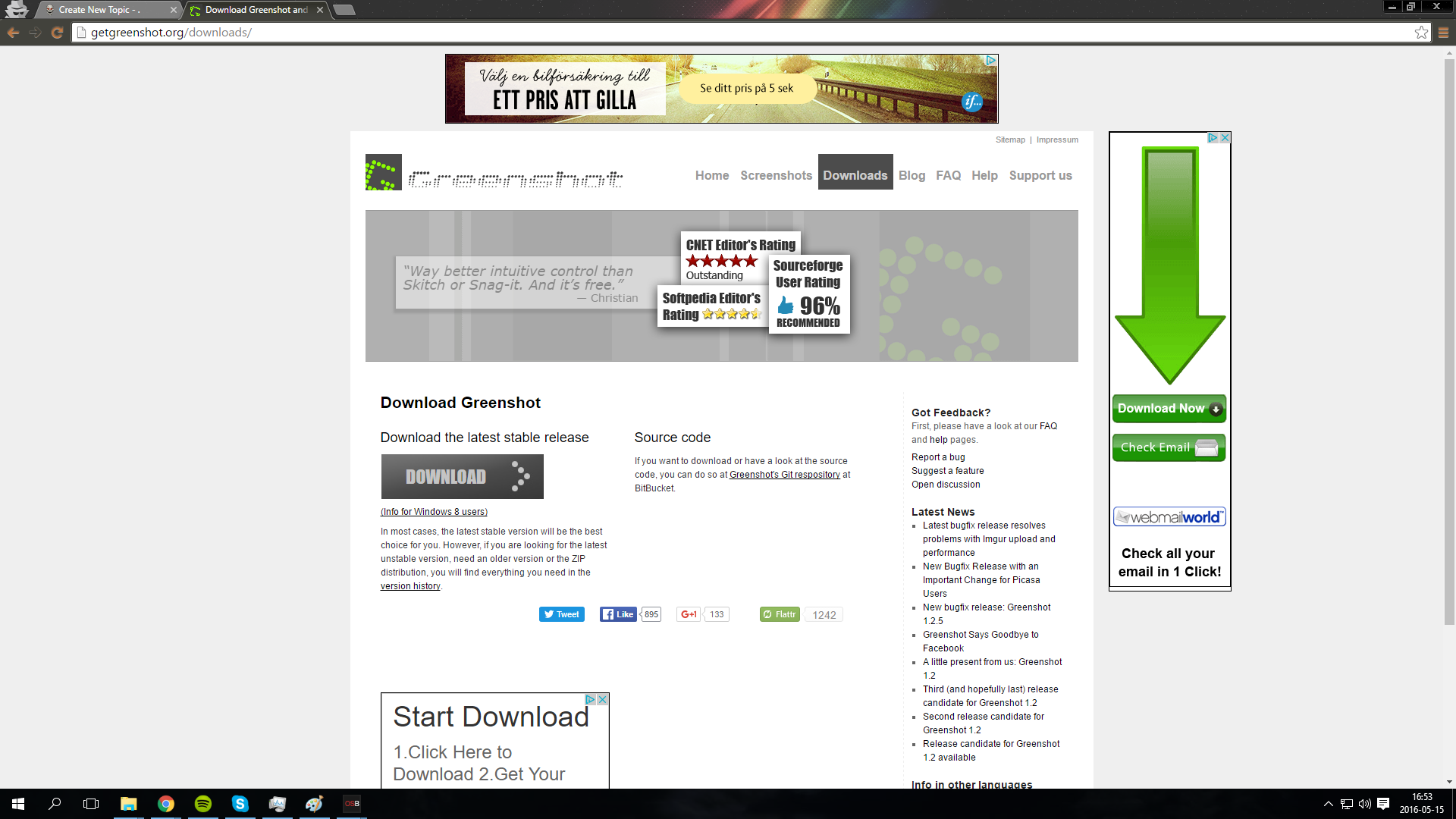
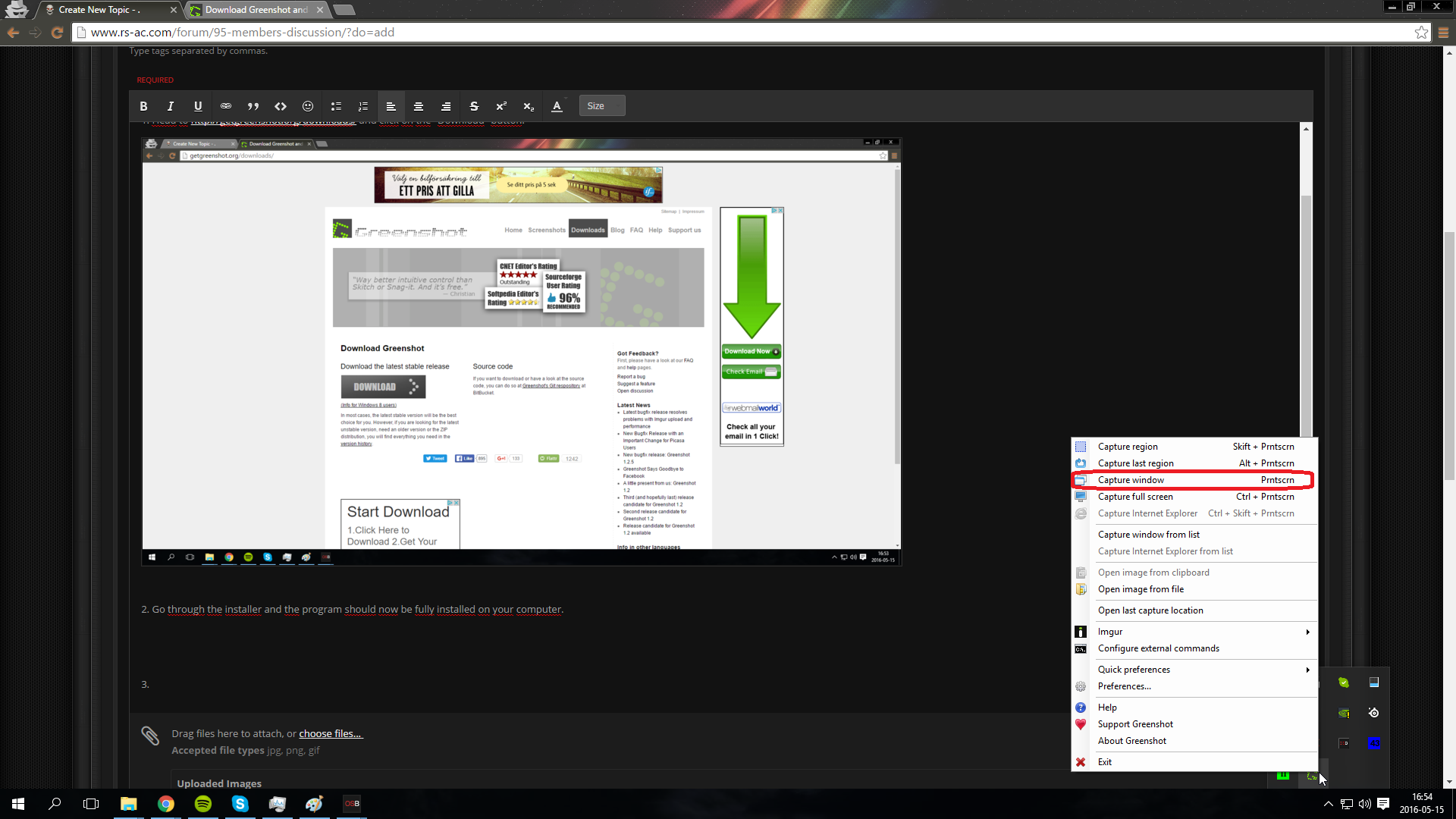
If you're not taking pics get on this 1. You want to start off by creating a new folder on your desktop, name it whatever you want but make sure you create one or the screenshots will be saved to random locations. 2. Head to http://getgreenshot.org/downloads/ and click on the "Download" button. 3. Go through the installer and the program should now be fully installed on your computer. 4. Right click the program on your taskbar and select the "Preferences" option. 5. Now that you've opened the settings, you want to make several changes, start off by copying my settings, this is how your settings should look like when you're done. Everything else is set to default. 6. Right click the program on your taskbar once again and select the "Capture window" option. Make sure your game client is active or it won't capture the right thing. 7. After you've selected the Capture window option and you have your game client open, it should look like the picture below. Left click once and it'll save the window region. 8. If you've followed all of the steps correctly you should be done, and this is how your folder should look like after taking a screenshot. Pls post below if you have any issues, it's a bit tricky to get it right but you won't regret it and Sp33dy will sleep well at night knowing no screenshots go to waste
-
-
ac to the rescue
-
what am i looking at
-
he was 56hp lmfao, what was he doing
-
not bad not bad
-
decent loot tbh, gj
-
ffs whats with the barrows luck